




Encryption by password
1. start the Adobe Acrobat Pro program. Click on the "Create PDF" button in the toolbar and then on "From file ..." in the menu that opens below.
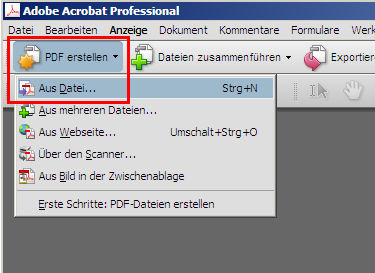
2. in the new window, select the document (e.g. Word file) that you want to convert to a PDF and encrypt. Now double-click the desired file or click on the "Open" button.
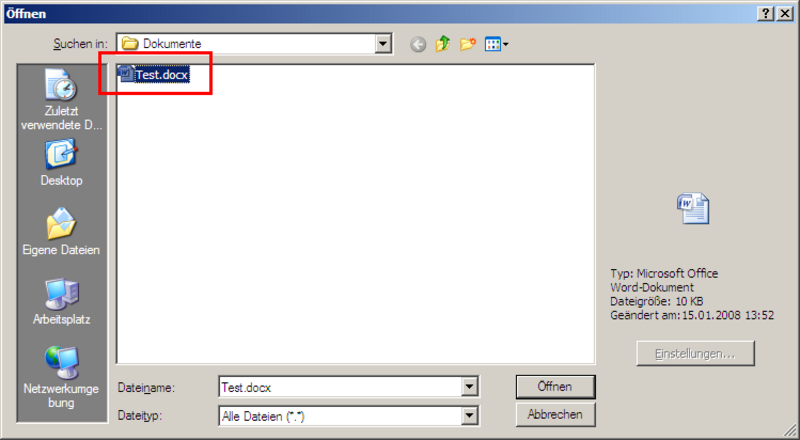
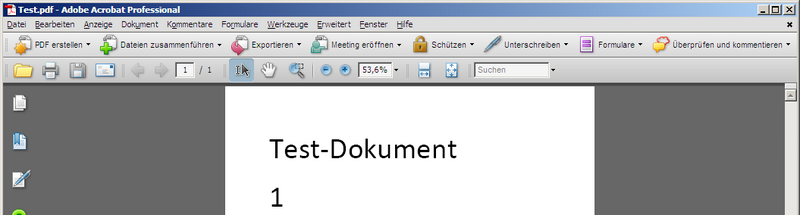
3. as soon as the document has been successfully converted to PDF format after a short time, the new file should be displayed correctly in the Acrobat program window.
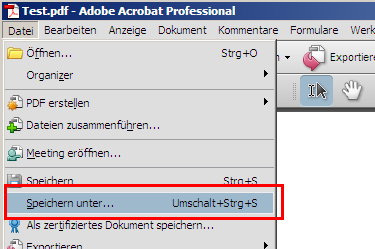
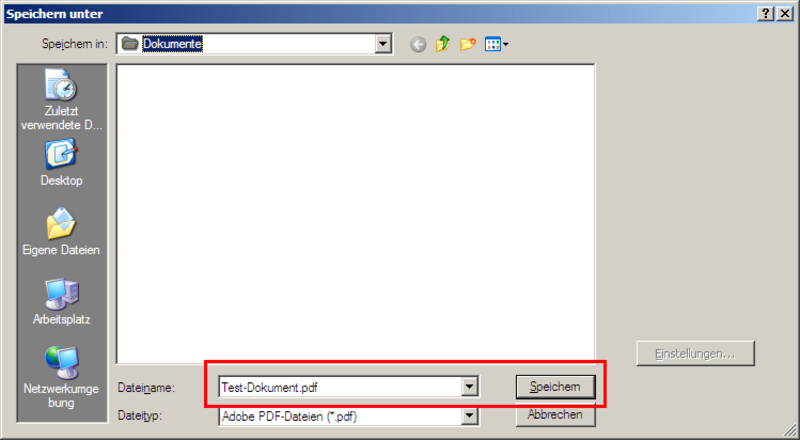
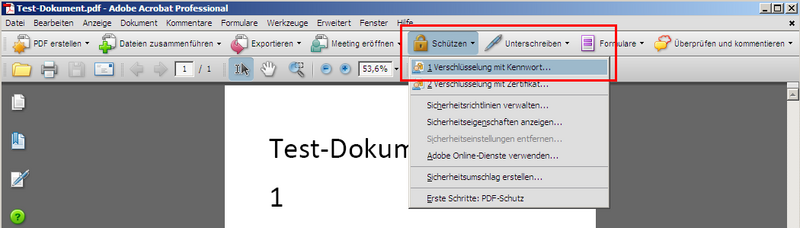
6 Once the PDF document has been created, encryption can be activated. To do this, click on the "Protect" button in the toolbar and then on "Encrypt with password ...".
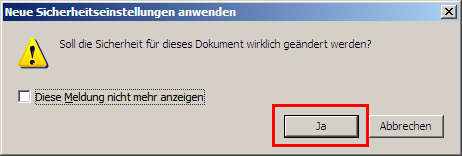
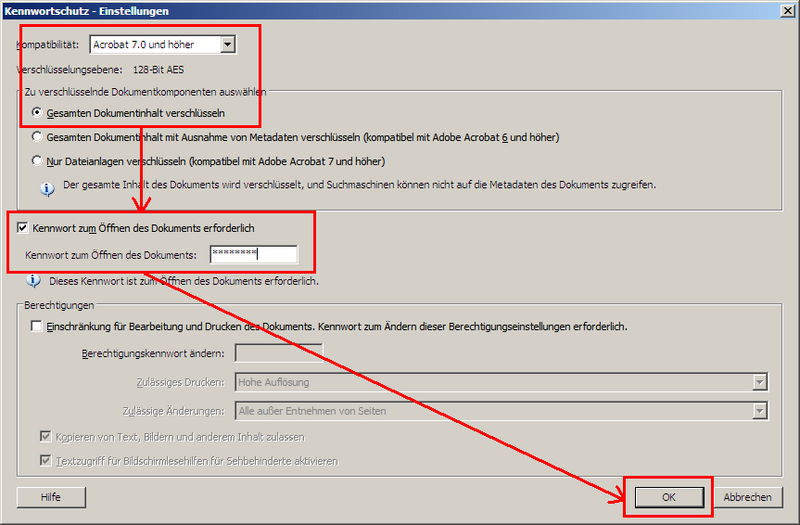
8. in the window that then appears, select the setting "Acrobat 7.0 and higher" at the top behind "Compatibility" and click on the button below "Encrypt entire document content". Then tick the box in front of "Password to open ..." in the middle of the window and enter the password to be used to encrypt the PDF file in the text field below. Finally, click on the "OK" button.
Important note: The security of the encrypted document depends on the quality of the password you choose. Avoid simple passwords, such as the name of a relative or your pet. Instead, use sufficiently secure passwords that contain upper and lower case letters as well as numbers and special characters. For example, replace selected letters with numbers and special characters. Example: Instead of "test password" -> "Tes7p@s$w0r7".
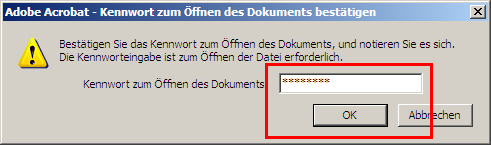
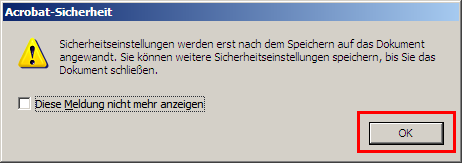
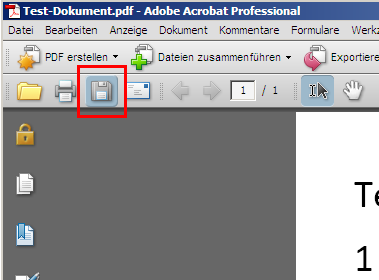
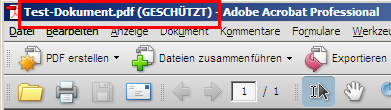
12 The PDF file is now encrypted. This is indicated by a "(PROTECTED)" after the name of the PDF document at the top of the window.
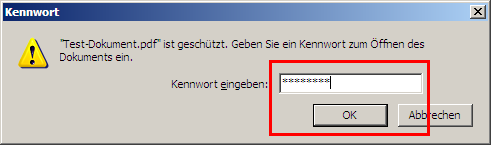
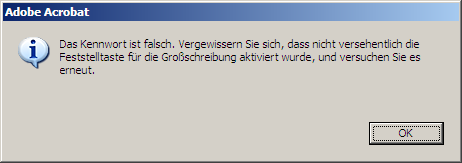
13 To test whether the document is actually protected against unauthorised access (with the correct password), close Adobe Acrobat Pro. Then double-click the PDF file and, if everything has worked, you should be prompted to enter the password. If the correct password is entered, the document will be opened.