




Encryption via certificate
Prerequisites:
- A personal user certificate must exist. You can find out how to apply for this here.
- Both the personal user certificate and the recipient certificate must be available in the Windows certificate store. How this can be done is explained here.
Important: The personal user certificate must be imported first so that all intermediate certificates are available correctly and the certificate chain works.
Steps:
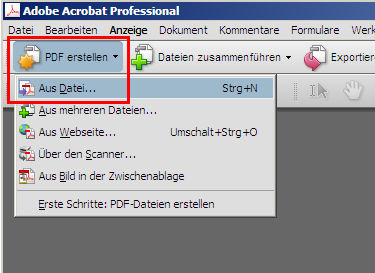
1. start the Adobe Acrobat Pro program. Click on the "Create PDF" button in the toolbar and then on "From file ..." in the menu that opens below.
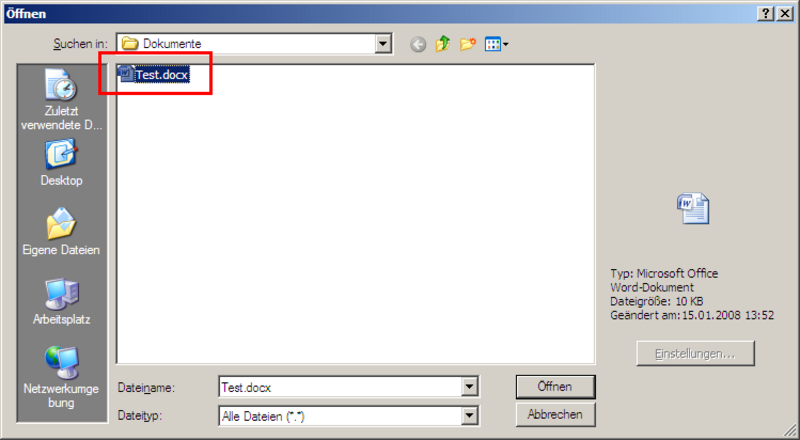
2. in the new window, select the document (e.g. Word file) that you want to convert to a PDF and encrypt. Now double-click the desired file or click on the "Open" button.
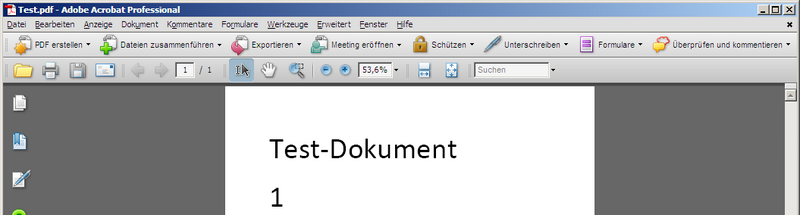
3. as soon as the document has been successfully converted to PDF format after a short time, the new file should be displayed correctly in the Acrobat program window.
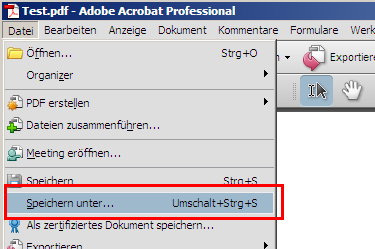
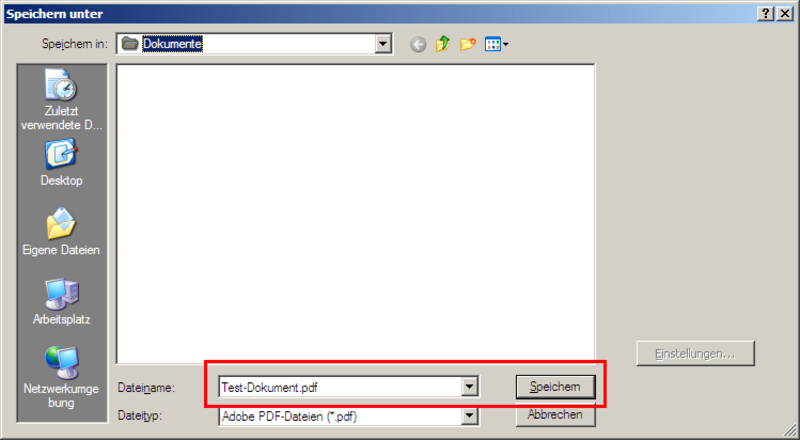
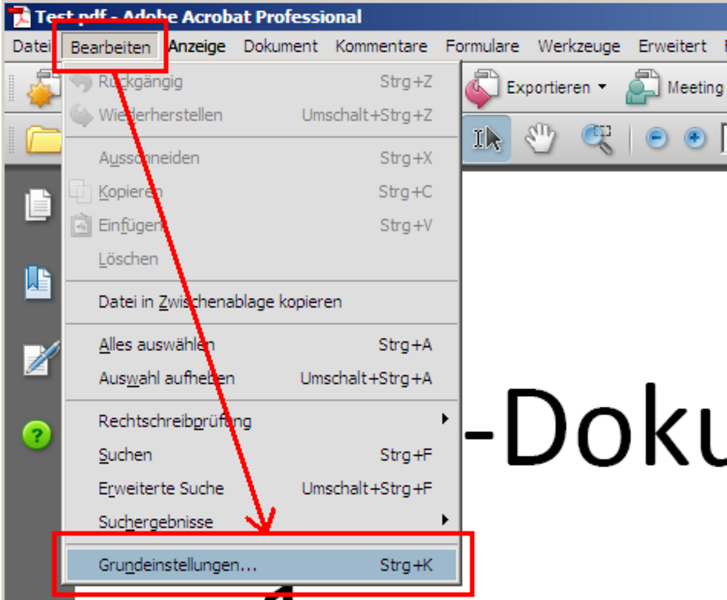
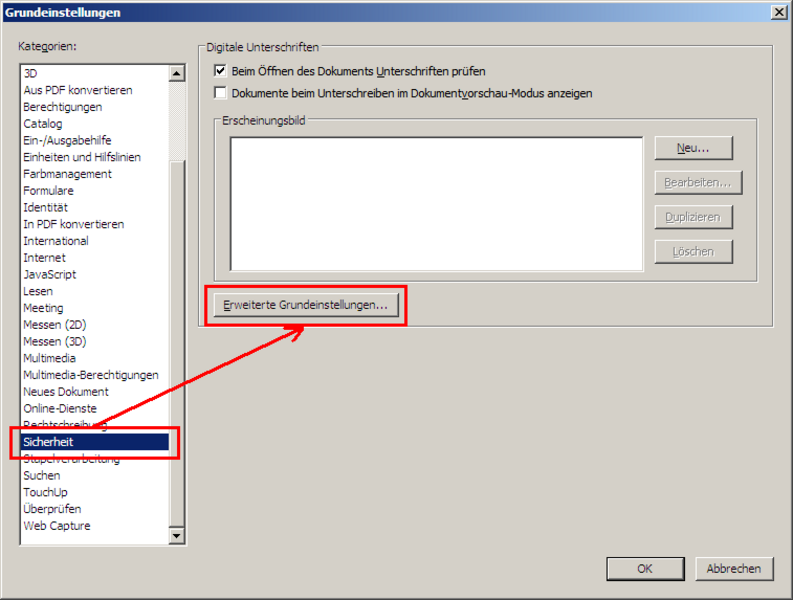
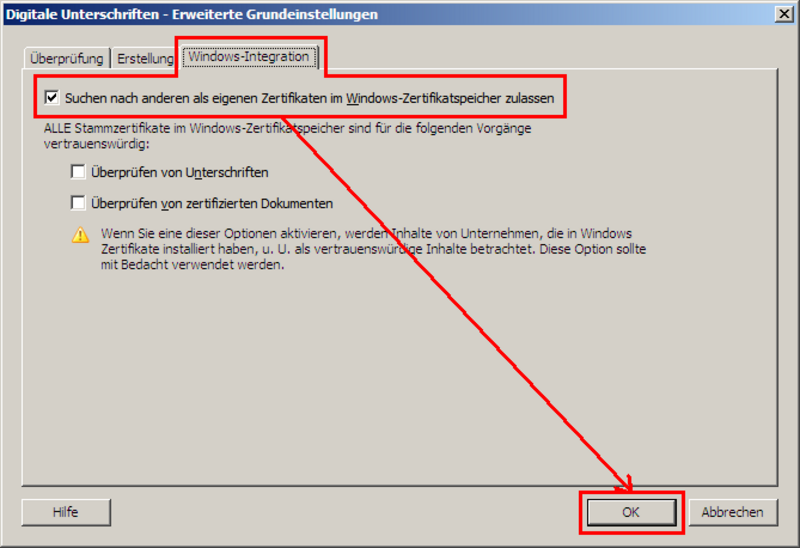
6. After the PDF document has been created, but before encryption can be activated, one more setting must be made. To do this, go to "Edit" in the menu bar and then to "Basic settings". In the new window that appears, click on "Security" on the left and then on the "Advanced basic settings" button. Finally, select the "Windows integration" tab and tick the "Search for other than own..." box at the top. This option means that Acrobat not only searches for certificates in its own certificate store, but also includes the Windows certificate store.
Note:
You only need to carry out this process (step 6) ONCE initially after installing Adobe Acrobat Pro!
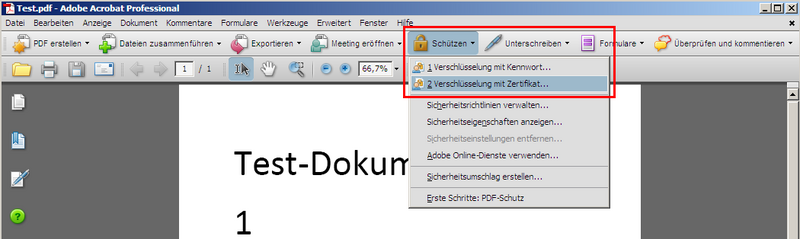
7. encryption can now be applied. To do this, click on the "Protect" button in the toolbar and then on "Encryption with certificate ...".
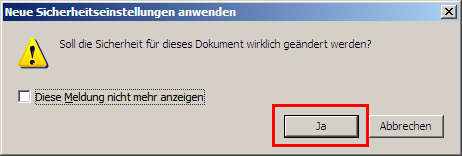
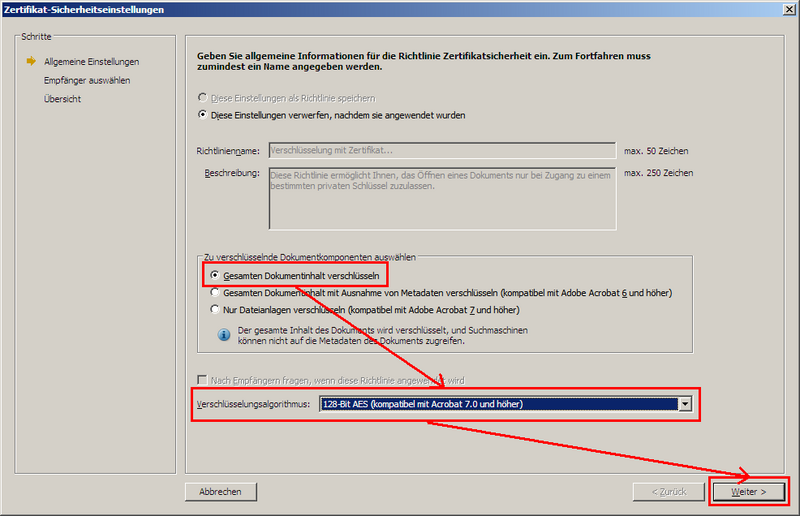
9. in the following window, simply click on the "Next" button at the bottom right, provided that the "Encrypt entire document content" box in the center is ticked and the encryption algorithm below is set to "128-bit AES".
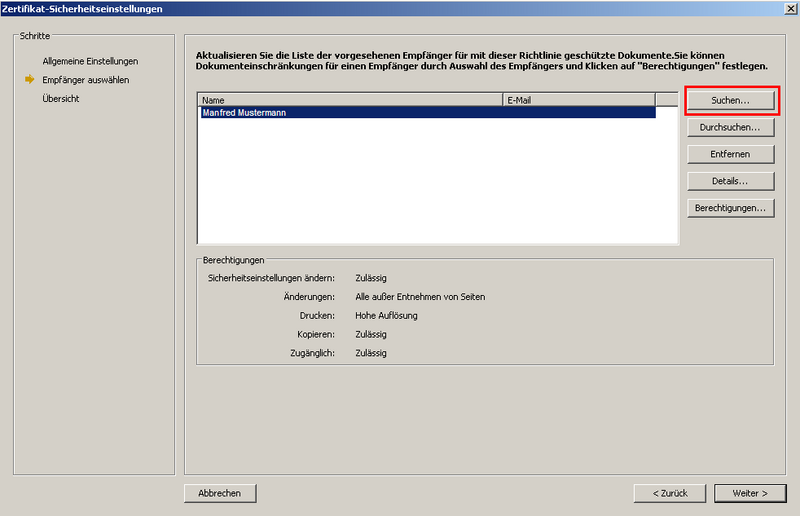
10. In the view that then appears, only your own certificate is initially displayed in the list of recipients (in this example "Manfred Mustermann"). You must also enter yourself as a recipient so that you (along with the additional recipients) are able to open your own encrypted document again. To specify the actual recipient whose certificate is to be used to encrypt the document, click on the "Search" button in the top right-hand corner.
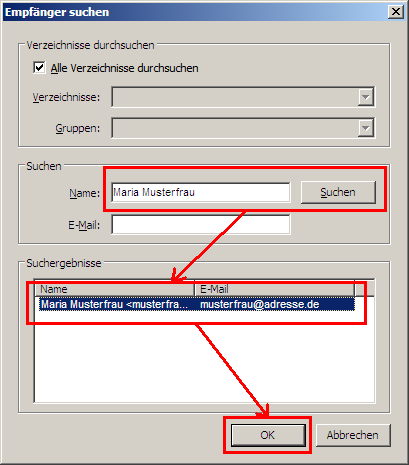
11. enter the first name and surname of the desired person in the text field behind "Name" and then click on the "Search" button. Shortly afterwards, the search result will appear in the lower part of the window (provided the certificate of the person in question has been imported correctly or no spelling mistakes have been made in the text field above). Mark the search result with the left mouse button and then click on the "OK" button.
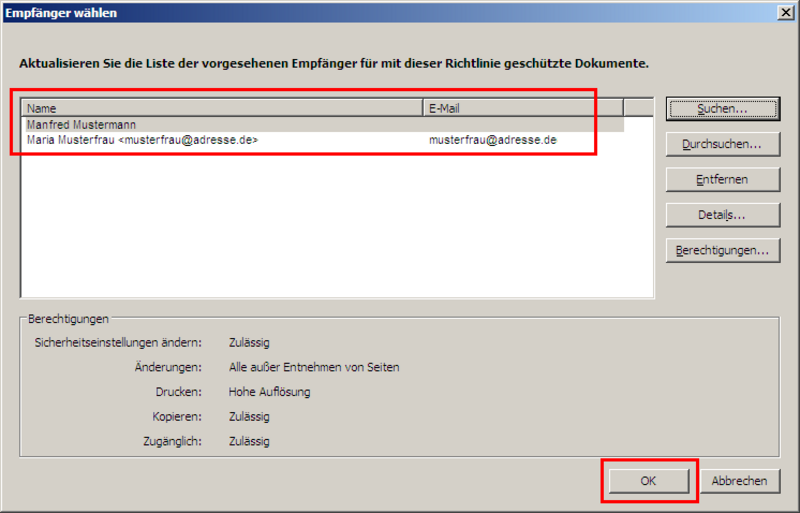
12. All recipients of the document to be encrypted now appear in the selection window. In this case, these are your own certificate and that of the "actual" recipient (here "Maria Musterfrau"). Your own certificate should always be specified so that you can open the encrypted PDF document yourself. Now click on the "OK" button.
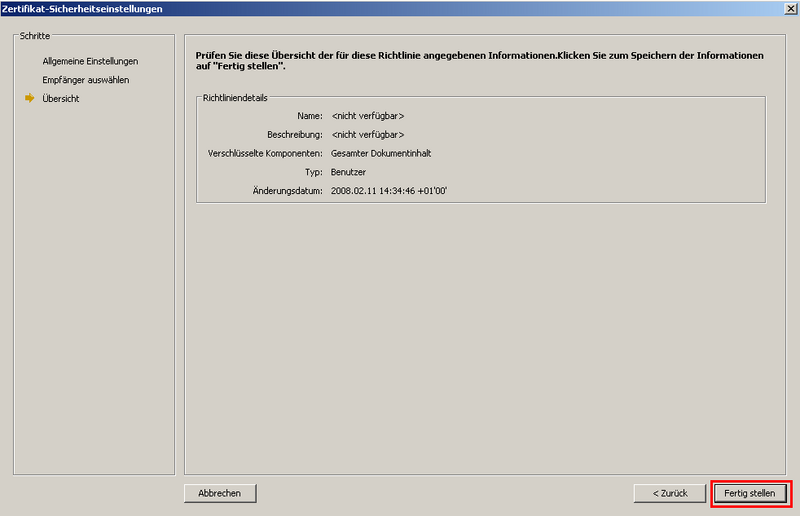
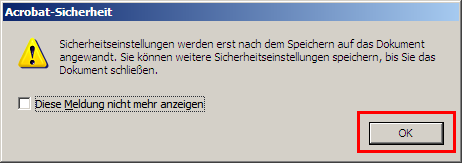
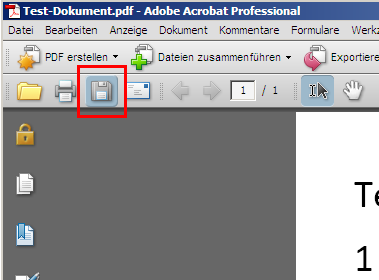
16. The PDF file is now encrypted. This is indicated by a "(PROTECTED)" after the name of the PDF document at the top of the window.
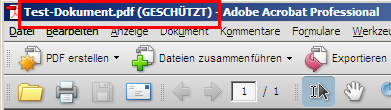
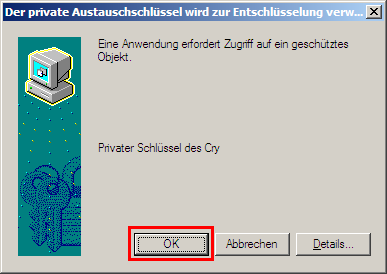
17. To test whether the document is actually protected against unauthorised access, close Acrobat. Then double-click the PDF file and, if everything has worked, you should be informed that the appropriate private key for your certificate is being loaded from the Windows certificate store to open the document. Confirm this by clicking on the "OK" button. The PDF file secured by certificate should now be displayed after a short decryption time.