




VPN iOS: Cisco Secure Client
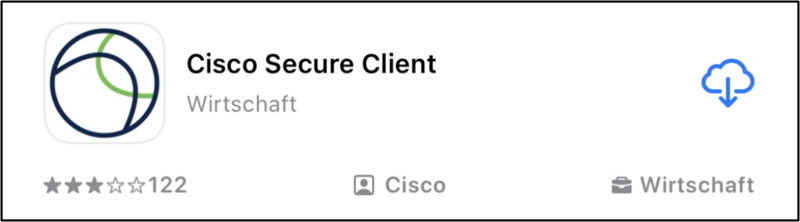
The Cisco Secure Client must first be installed on your iPhone or iPad. To do this, follow the instructions "Cisco Secure Client Installation". For a VPN connection from outside to the university network, start the Cisco Secure Client and establish the connection.
Multi-factor authentication is mandatory for VPN starting November 10th 2025!
YubiKeys are not supported under iOS for VPN login. Please use another MFA method instead, e.g. the Microsoft Authenticator app or a TOTP app.
VPN connection with functional accounts is no longer possible.
- Open the AnyConnect app
- Click on [ Connections ]
- Select [ Add VPN connection...]
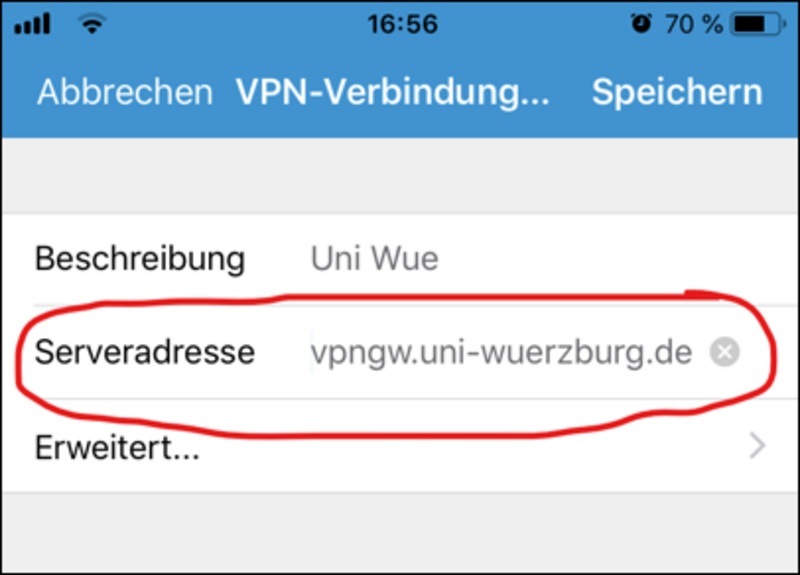
- Enter a [ Description ] of your choice.
- Enter the following [ Server address ]: vpngw.uni-wuerzburg.de
- [Save ]
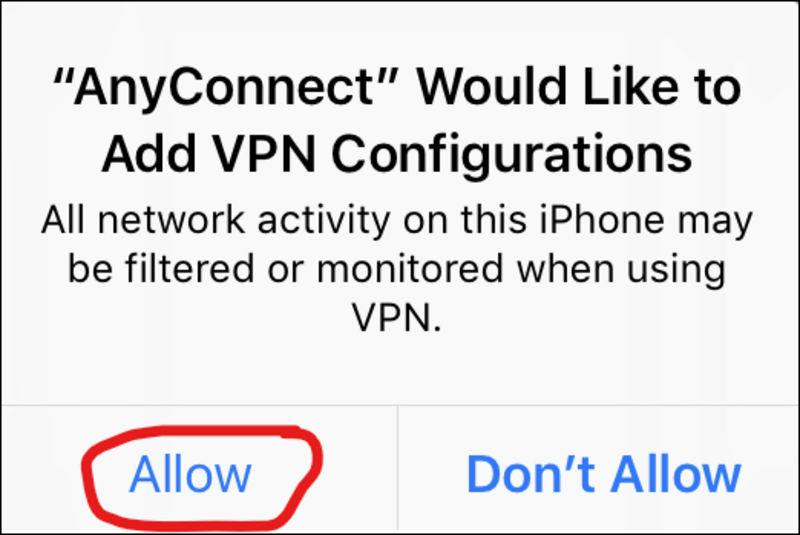
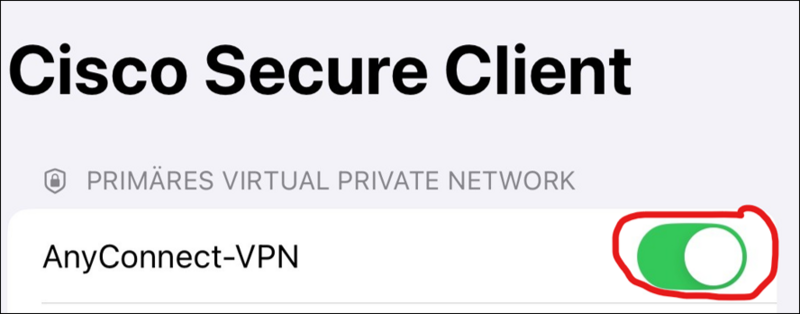
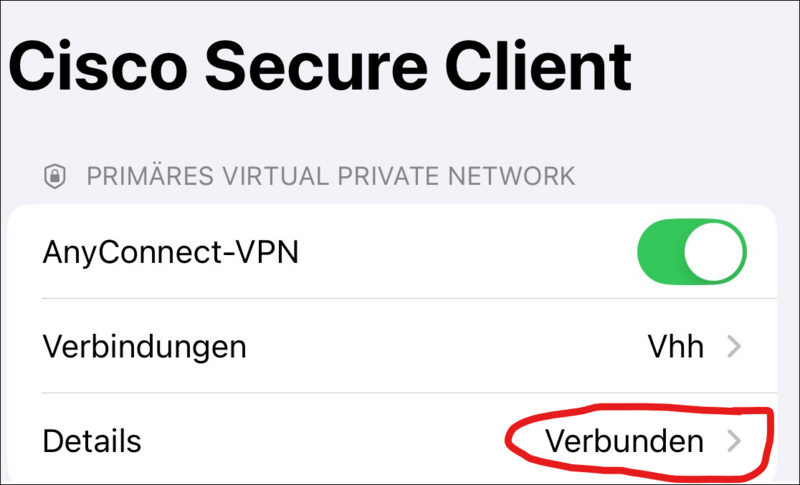
- Open the start page of the AnyConnect app again.
- Activate the slider next to "AnyConnect VPN" to switch on the VPN connection.

- Log in via WueLogin.