




Windows
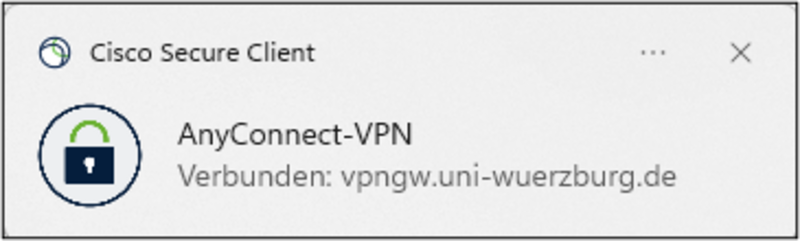
First, Cisco Secure Client must be installed on your PC. On devices managed by the Information Technology Centre, you can find the app in the Software Center. Otherwise, please follow the instructions in “Installation of Cisco Secure Client”. To establish a connection from outside the university network, launch Cisco Secure Client and connect.
Important: As of 10.11.25, multi-factor authentication (MFA) is required for all VPN connections!
Using a functional account is no longer supported.
For Windows with ARM64 processors, please use the Microsoft Edge browser. Only Edge automatically recognizes the appropriate ARM installer and downloads it.
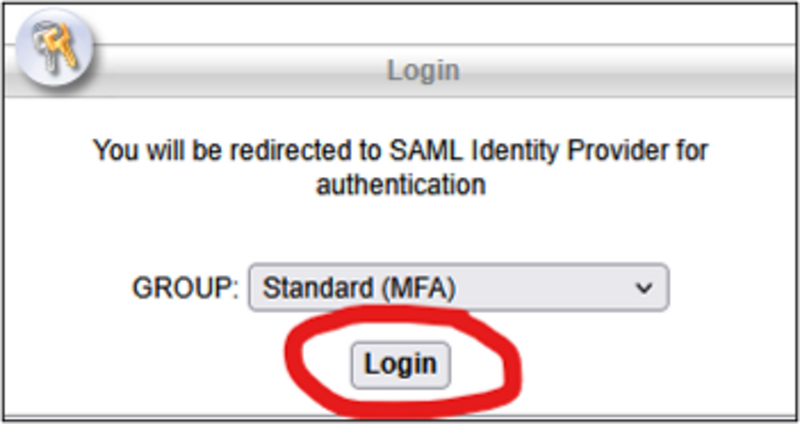
- Visit https://vpngw.uni-wuerzburg.de
- Select "Standard MFA" as the group and click on [ Login ].
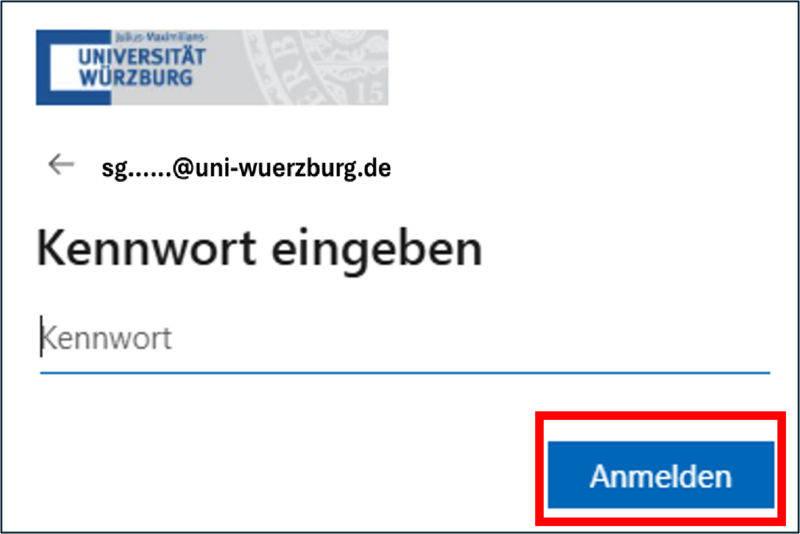
- Sign in now via WueLogin. If you are already signed in to any other WueLogin service, you will be redirected automatically.
- You may be shown the "Information to be submitted to the service". In this case, scroll down and click on [ Accept ].
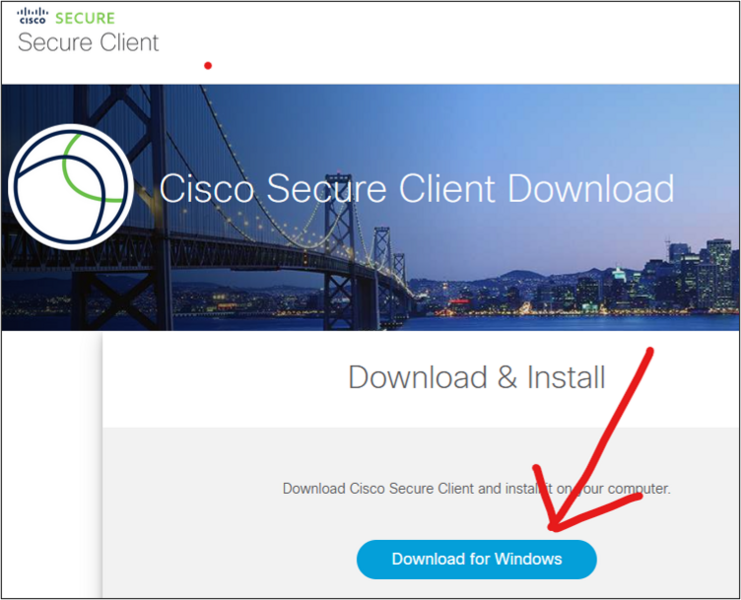
- Click [ Download for Windows ] to download the installation file "cisco-secure-client-win...exe"
- Start the installation by [ double-clicking on the downloaded file ].

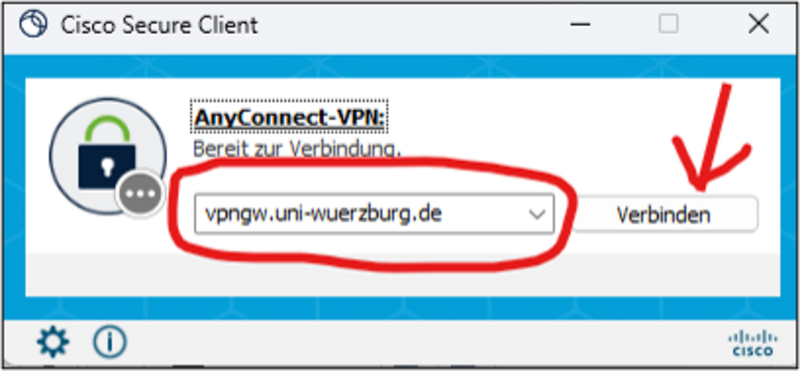
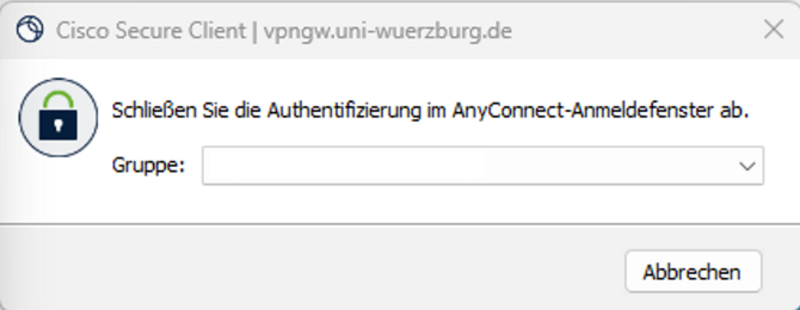
-
In the dropdown menu next to the [ Group ] selection field, you can choose between these profiles:
Standard (MFA) (tunnel-all): all data traffic is tunnelled via the university network, including internet access. Required for using library services or BayZeit.
Access only to the university network (split tunnelling): only the data traffic to the university is tunneled (IP address range from the university network 132.187.*). Use this for example for accessing internal servers not available externally.
Access only for SBL (Start VPN before Windows Logon): SBL: Is only required in special cases: Before Windows logon when the PC is not physically connected to the university network and if you have never signed in before. Access to this profile must be granted by your IT department manager.
- Sign in via WueLogin.