




VPN with MFA (test operation)
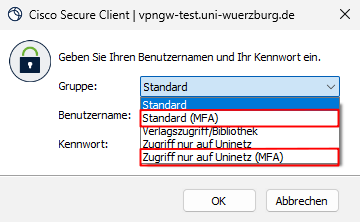
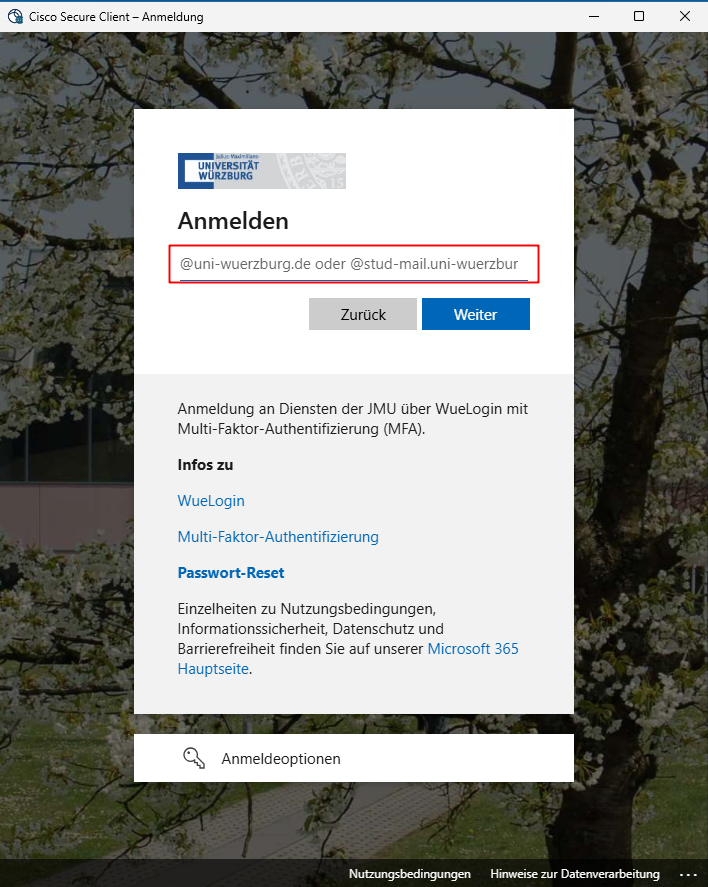
The university's VPN servers are currently being prepared to secure VPN login via MFA. In a transition phase, the MFA login can already be tested and feedback can be given to the IT support of the Information Technology Centre. In addition to the previous dial-in to the VPN via username + password in the VPN gateway, login via WueLogin has been enabled. No changes are necessary on the client side. The new dial-in profiles are also displayed in the "Groups" dropdown when dialling into the VPN:
Notes on registration with MFA
- Supported MFA procedures
MS Authenticator App TOTP Passkey Yubikey/Fido2 Windows Yes Yes yes yes Linux yes yes yes no Mac OS X yes yes yes no iPhone/iPad yes yes yes no Android yes yes yes no - Dialling in via graphical user interface only: MFA login via CLI is not possible, as the Entra login window is required for login via MFA
- Change the dialling-in profile if you are currently using an MFA profile: The MFA login window tends to cover the window with the profile selection. This must be brought to the foreground to change the profile (e.g. under Windows with Alt-Tab).
- Linux: If a Cisco Secure Client cannot be used on a Linux system, OpenConnect can also be used (not supported by the Information Technology Centre). Important here:
- OpenConnect must be started from a graphical user interface so that the Entra window can be displayed.
- The User Agent field in the configuration must contain the literal AnyConnect - OpenConnect. The VPN gateway rejects the client if it is written otherwise.
- OpenConnect must be configured / started via the GUI. The "User Agent" field is only included in new versions of the NetworkManager/OpenConnect configuration dialogues (e.g. Ubuntu 24.04)
- "Start before Logon (SBL)": If SBL is set up on the device (e.g. centrally provisioned service devices), then SBL currently only works with the "Standard (without MFA)" profile. When dialling in via SBL, an initial error message appears. Simply click this away and select the "Standard (without MFA)" profile for logon in the group selection.