




Multi-factor authentication

In order to further strengthen IT security at the university, multi-factor authentication (MFA) is gradually being introduced for logging in to central IT services. This procedure offers additional protection against unauthorised access and data misuse by requiring a second security component in addition to the password.
This applies to all services that are used via WueLogin - including Outlook on the Web, VPN, WueStudy, WueCampus, WebShop, Zoom, Lecture etc.
Direct link to Microsoft account - Set up MFA
Microsoft Authenticator App
- App on smartphone or tablet
- recommended for all by RZ:
Memploees, students, guest students, early students/Unitag, UKW, LehrKH
TOTP
- 6-digit security code
- with an app of your choice on smartphone, tablet
- Apps also available for PC or laptop
We strongly recommend that you also set up the second factor on at least one other device (e.g. tablet, older smartphone or YubiKey). This will ensure that you retain access to your account in the event of a device loss, defect or reset.
If no other device is available, you can alternatively set up a TOTP client on a personal laptop or PC. Further information is available on request by e-mail from IT support.
The second factor is device-specific. This means that it only works on the device on which it was originally set up. When using data transfer applications (iOS Quick Start, Samsung's Smartswitch, Google Backup, etc.), the app is transferred but does not work on the new device. The app MUST be set up again on the new device.
Important: setting up a new second factor always requires authentication with the existing second factor. You must therefore have access to the Authenticator app on your previous device in order to set up MFA on a new device. If you have already reset your mobile phone, you are effectively locked out of your account. In this case, MFA must be reset by IT support.
By uninstalling the Authenticator app, the second factor on the device becomes unusable and MUST be set up again. If you have installed the second factor on only one device and uninstall the app from this device, you are effectively locked out of your account. In this case, MFA must be reset by IT support.
FAQ - Overview & Questions
You are probably using Safari as your browser, which is not supported on macOS. Only Google Chrome is supported under macOS.
You can find information on browsers under Support for FIDO2 authentication with Microsoft
Errors often occur if another browser is used under Linux instead of the supported Google Chrome browser.
Only Google Chrome is fully supported under Linux.
Information on browsers can be found under Support for FIDO2 authentication with Microsoft
Yes, but it must be a Microsoft-compatible FIDO2 security key.
You can find a list of providers under Microsoft-compatible FIDO2 security key providers
A)
If you have not set up another security factor, you must collect a temporary access pass in person from IT Support.
B)
If you have set up a YubiKey in addition to the app, you must proceed as follows:
Please use Google Chrome or Edge as your browser. Only Google Chrome is supported on Linux and macOS.
- Log in as usual until you have to confirm the login.
- Select [I can't use my Microsoft Authenticator app at the moment] here
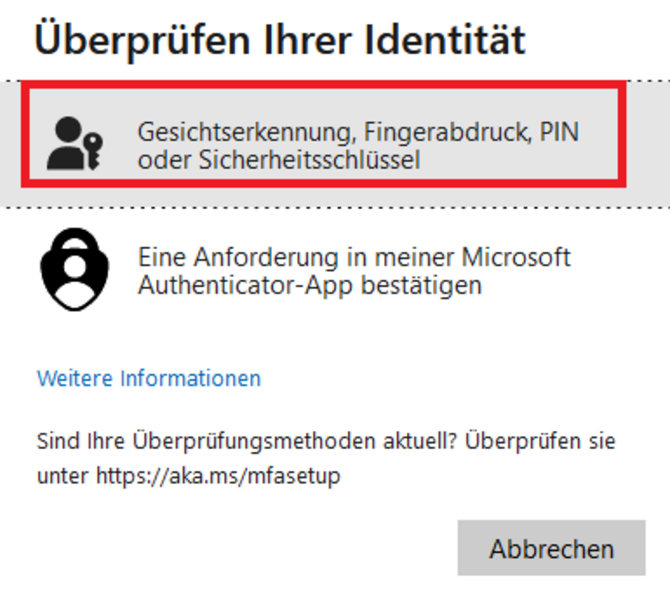
- Select [Face recognition, fingerprint, PIN or security key]
- If necessary, select the [Security key] via [Use another device]
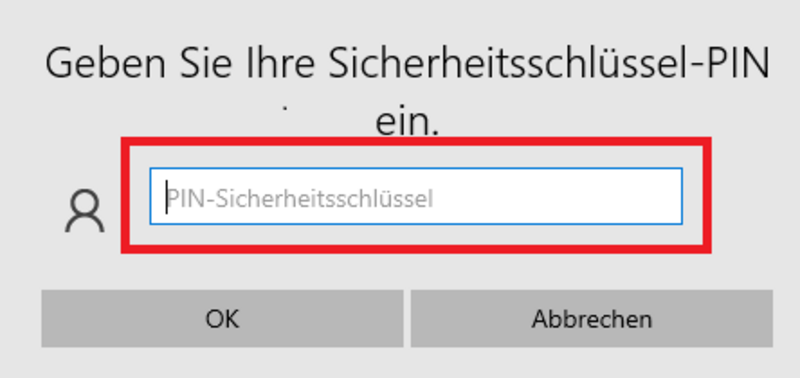
- Enter your security key PIN
- Tap on the security key
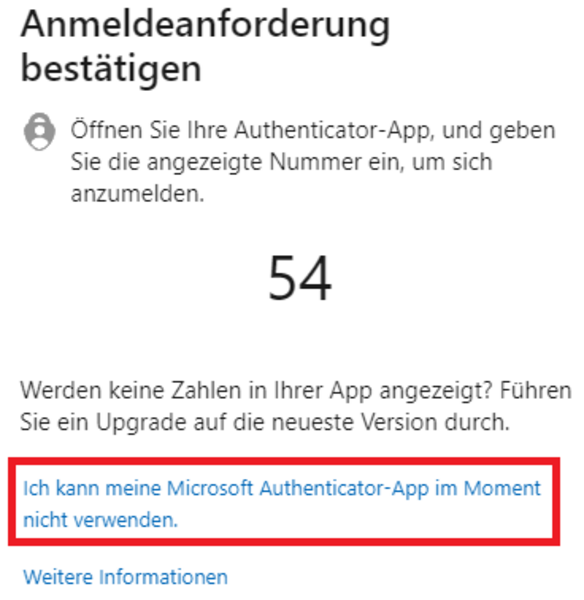
Yes, this is possible without any problems.
You will then receive login approval notifications on both devices and can confirm them on either of them.
If you still have an alternative second factor registered, e.g. YubiKey or MFA app on a tablet, then you can simply reinstall the Microsoft Authenticater app on the smartphone.
However, if the deleted app was your only security factor, you can try reinstalling the app and linking it to your Microsoft account. If this does not work, you will need to contact IT support.
The link to the security information of your Microsoft account is:
Alternatively, after logging in to office.com or go.uniwue.de/o365 - click on your profile at the top right - Show account - click on Security info in the menu on the left
Important:
Never delete the app on your old smartphone or in the security settings of your Microsoft account before you have registered the new smartphone. You need the old smartphone to authorize the setup on the new one.
Procedure:
Install the app on the new smartphone and add the new smartphone in the security information of your Microsoft account according to the instructions.
Only when this process is complete can you delete the app from the old smartphone in the security information of your Microsoft account. You can then also delete the app on the old smartphone.