



bwSync&Share

bwSync&Share is a cloud storage service that allows you to synchronise data between end devices (Sync) and share it with other users (Share).
Sync features
- the data can be synchronised across platforms (PC, smartphone, tablet, ...)
- A web interface is available
- Desktop clients for Windows, macOS and Linux and apps for Android, iOS are available
Share features
- Files and directories can be shared with other users
- Different assignment of rights is possible
- External Users can be invited by email
- Links for sharing and downloading can be sent
- Office documents can be edited together on the web via Nextcloud Office (based on Collabora)
Requirements and access
You need bwSync&Share storage -> Order in the WebShop
If you need bwSync&Share memory to synchronise your data or want to make memory available to other users for shared use, you must order bwSync&Share in the WebShop for a fee. This is not possible for functional accounts. You can register for bwSync&Share via the "Member of the bwSync&Share network" option.
Guest access
If you do not require your own paid bwSync&Share storage and only wish to use shared storage, a bwSync&Share user must invite you as a guest. It is not necessary to place an order in the WebShop, registration is via the "Guest" option. Guests can be members of the university as well as external partners.
Registration
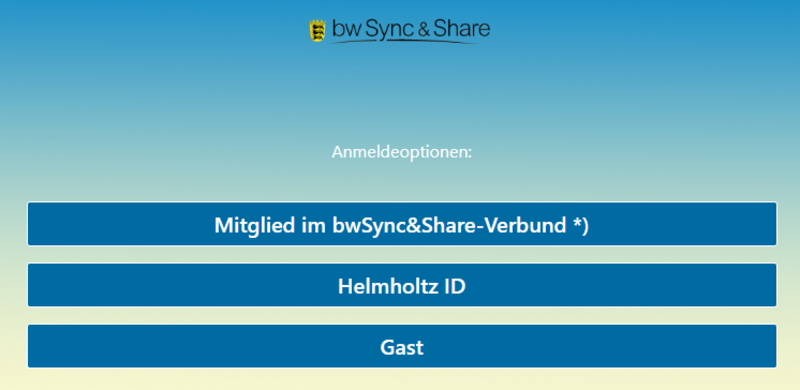
ONLY for users who have purchased bwSync&Share in the WebShop:
Directly to the bwSync&Share login for users with a licence from the WebShop
- select the option"Member of the bwSync&Share network
- search for "University of Würzburg"
- log in with your university email address and password.
For all users who have been invited as a guest (also applies to JMU members):
You must activate your account once . You will find the link in the invitation email.
As soon as your account is activated, you can log in to bwSync&Share using the "Guest" option.
- select the "Guest" option on the page
- log in with your e-mail address and bwSync&Share password.
Service profile
bwSync&Share is based on the cloud technology of nextcloud. bwSyncandShare is a DFN cloud service provided by the Karlsruhe Institute of Technology (KIT) / Scientific Computing Centre (SCC). The data is stored by the provider within the DFN network.
bwSync&Share - FAQ
Yes, with the Nextcloud Office web application, Microsoft Office documents can be edited without the need for a download. Several partners can also work together on a document opened in Nextcloud Office.
You can find more information in the Nextcloud Office quick guide.
Windows computers that are managed via SCCM can install bwSync&Share from the Software Centre.
If not, you can find the desktop clients (Windows, macOS and Linux) here:
You can find the app for Android here:
https://customerupdates.nextcloud.com/kk1eoZCTo0kI5HpGE3IT/
Enter the server address during setup:
https://bwsyncandshare.kit.edu
You must download and install the "Nextcloud" app from the App Store.
Enter the server address during setup:
https://bwsyncandshare.kit.edu
To share a folder or file with another user, click on the symbol with the three dots to the right of the file or folder name and then select "Share" from the menu that appears on the right.
Then enter the user's full email address in the input field that says "Name".
(Auto-completion is deactivated in bwSync&Share for data protection reasons).
The name of the user known to bwSync&Share for this e-mail address will then appear below and you click on the button with this name.
The user then receives an e-mail informing them that the folder or file has been shared with them.
If bwSync&Share does not yet know this e-mail address, the "Invite guest" button appears.
Click on this button and a window will appear in which you enter the name of the new user and then click on "Invite user and create share".
A welcome email is then sent to the user and the new user can log in to the service either as a user of an authorised institution or as a guest.
To transfer a folder or file to another user, click on the coloured circle at the top right with your initial letter or your profile picture and click on Settings. Then click on Share in the selection list on the left and then on the "Select file or folder for transfer" button.
If you want to transfer a folder, go to this folder and click on "Select" without clicking on an individual file.
If you want to transfer a file, select the file and then click on "Select".
Please note: No automatic e-mail will be sent to the user to whom you want to transfer the item. Instead, the user will receive a notification on the website and must agree to the transfer.
The transfer of the folder may take a few minutes.
After the successful transfer, you will receive a corresponding notification on the website.
You will lose all authorisations for the item with the transfer and must be invited to the folder again if you want to continue to have access to the folder or file.
The maximum size of a file is 10 GB.
After deleting files, these files are moved to the "Deleted files" folder (= recycle bin) of the owner of the data.
If a person with whom the data was shared deletes these files, the files are also moved to this person's "Deleted files" folder.
All other people with whom this data was shared no longer have access to these files.
To restore a deleted file, click on "Deleted files" at the bottom left of the web browser and select the file(s) to be restored by ticking the box. Then click on "Actions" at the top of the page and then on "Restore".
A comprehensive German user manual for the Nextcloud web interface, desktop client and mobile apps can be found here on the Nextcloud website. An English user manual is available at this address.