




Microsoft 365
You can access Microsoft Online Services directly from the Microsoft-Portal. Log in with your Microsoft account.
You can use cloud services like Teams and the online version of Office (Office for the Web).
Office programs such as Word, Excel, Power Point can be used exclusively in the browser, but cannot be installed locally on your PC.
If you cannot do without the local installation of the Office programs, please contact your local contact person for WebShop orders. Institutions can order "Microsoft 365 A3 für Lehrbeauftragte" for a fee in the WebShop. With this license, you can then download the Office programs for local installation in the Microsoft-Portal.
The user name of your Microsoft account corresponds to your university mail address, as long as it ends with @uni-wuerzburg.de.
Exception: If your mail address has a sub-domain like e.g. @jura.uni-wuerzburg.de or @physik.uni-wuerzburg.de, the username of your Microsoft account has the form "JMU-Account@uni-wuerzburg.de" e.g. sap12xx@uni-wuerzburg.de.
The password is that of your JMU account; it is the same as the one you use for E.Mail, WueCampus, etc.
Forgotten your password? Info under Password Reset.
Alternatives
The free Office OpenSource solution LibreOffice is for many users an alternative for Microsoft Office. For Online Services available alternatives are for example WueTeams, WueCampus, Zoom, Jitsi.
FAQ
Probably the old license with @uniwuerzburg.onmicrosoft.com is still activated, which you need to remove first.
Please follow the steps from this article to do so:
Probably the old license with @uniwuerzburg.onmicrosoft.com is still activated, which you need to remove first.
Please follow the steps from this article to do so:
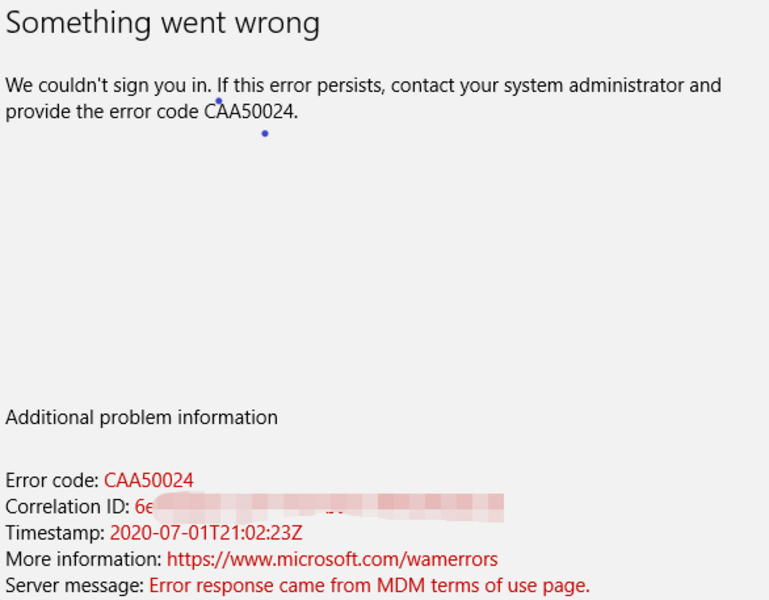
Suggested solutions for this error can be found in this article
 Click to zoom in.
Users may encounter CAA50024 error when opening Office 365 apps including Outlook, OneNote, etc.. This error is due to conflicts of cached credentials, and will most likely occur on Windows 10, e.g. with @uniwuerzburg.onmicrosoft.com.
Step-by-step guide
Windows 10:
- Close all Office apps. This includes Excel, Word, OneDrive, OneNote and PowerPoint.
- Open File Explorer. This can be done by searching for “File Explorer” in the Windows search menu.
- Type this path: Control Panel\All Control Panel Items\Credential Manager
- Click Windows Credentials and remove all credentials about Office/Outlook/OneDrive.
- Launch Office apps and sign in your Office account again.
- Do NOT select "Let my organization manage my device" and uncheck this box when it appears. This will cause the error to reappear.
If the above steps do not work, please try the following:
- Go to Settings > Account > Access work or school
- Click the account you want to unlink (your school account) and press the “Disconnect” button
- Then, restart the device