
Set up the Microsoft Authenticator app
Start the setup in a browser, ideally on a PC or laptop
To avoid conflicts with existing Microsoft logins (e.g. UKW, simultaneous student and employee), use a different browser or a private/incognito browser window.
1. open the link https://aka.ms/mysecurityinfo
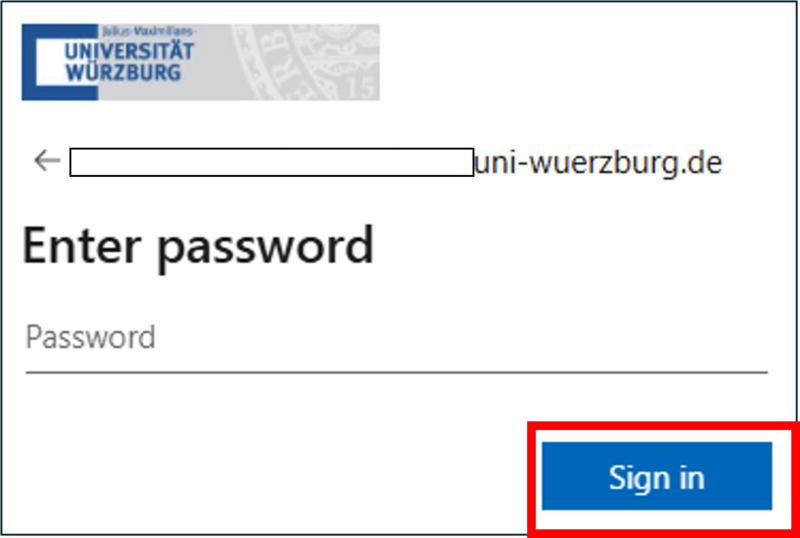
2. registration with university email address = WueLogin
for students: firstname.lastname@stud-mail.uni-wuerzburg.de
for employees: firstname.lastname@uni-wuerzburg.de
for UKW: <ukw-account>@uni-wuerzburg.de
for Lehrkrankenhaus: <jmu-account>@uni-wuerzburg.de
for Gasthörer, Frühstudis, Unitag: <jmu-account>@uni-wuerzburg.de
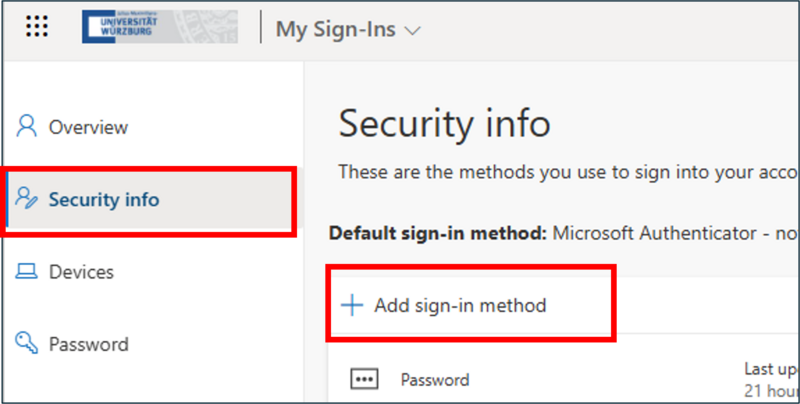
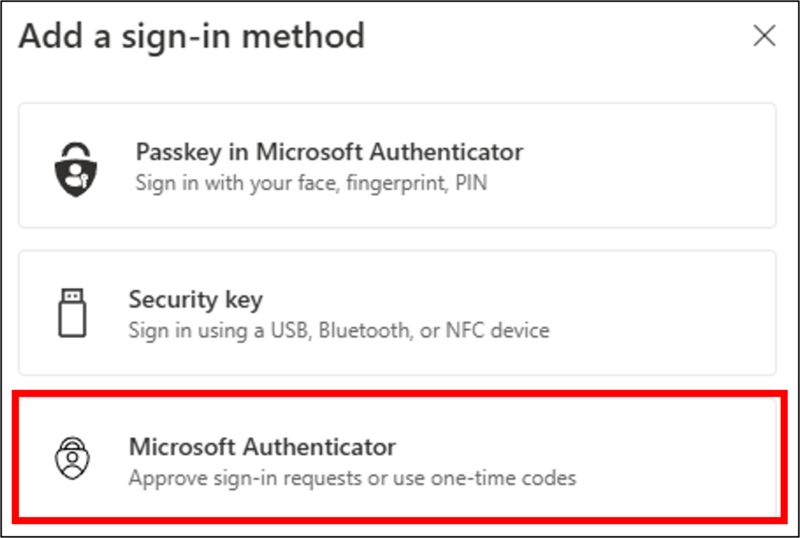
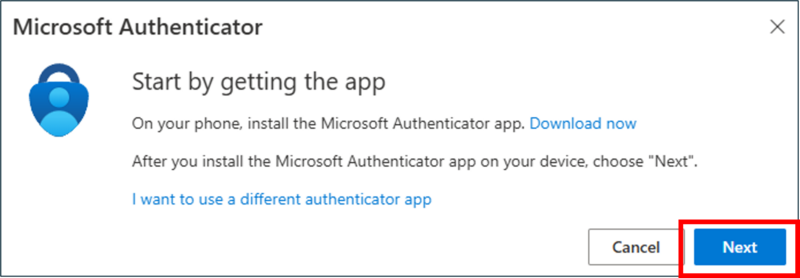
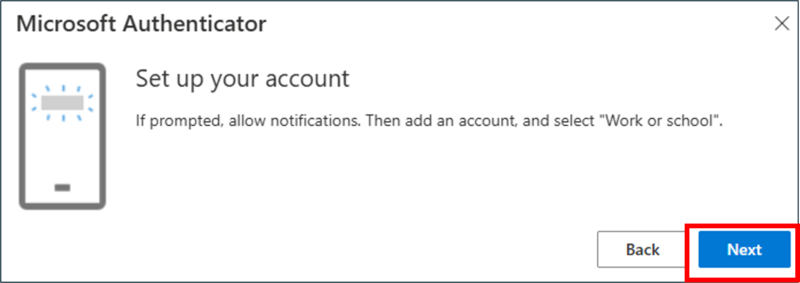

If the app is not yet installed
- Install the Microsoft Authenticator app
 from the App Store / Google Playstore and open the app
 - Microsoft respects your privacy: [ Accept ]
- Help us improve Microsoft Authenticator: [ Deactivate ] - [ Continue ]
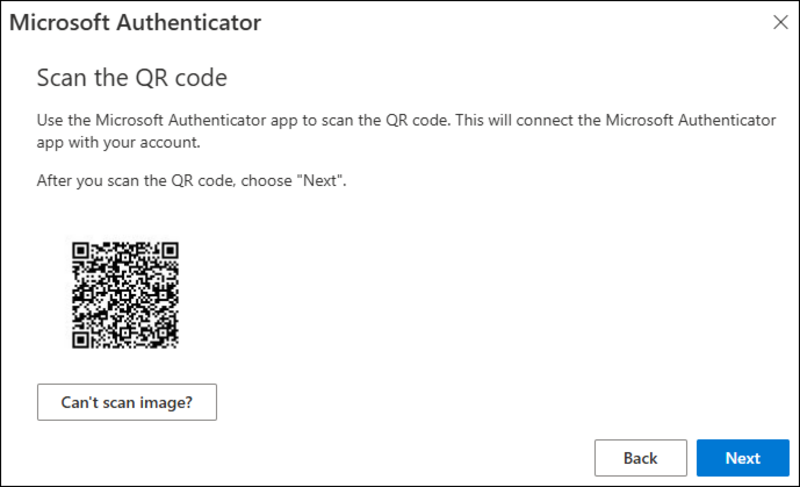
- [ Scan QR code ]

- Now use the app to scan the QR code displayed on the PC
- Allow the request to allow messages with [ OK ] or [ Allow ].

Is the app already installed?
- Open the app
- Click on the [ + symbol ] in the blue area at the top right
- [ Business or school account ]
- [ Scan QR code ]
Now use the app to scan the QR code displayed on the PC.
Allow the request to permit notifications by clicking [ OK ] or [ Allow ].
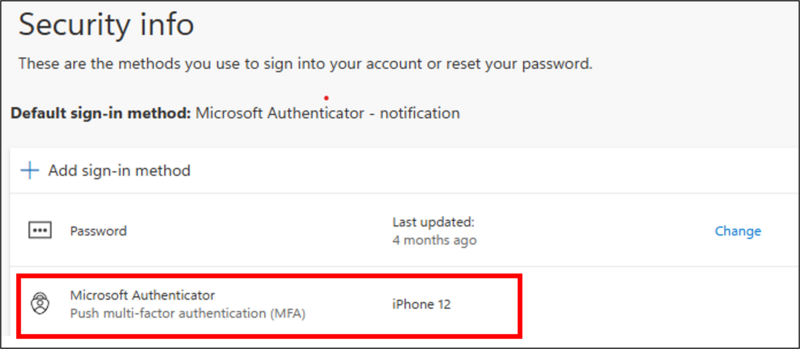
Once the QR code has been successfully scanned, the account will be added to the app with the heading Universität Würzburg and your university email address. If something else appears there instead of “University of Würzburg”, e.g. “Entra”, something has gone wrong. Please contact IT-Support.
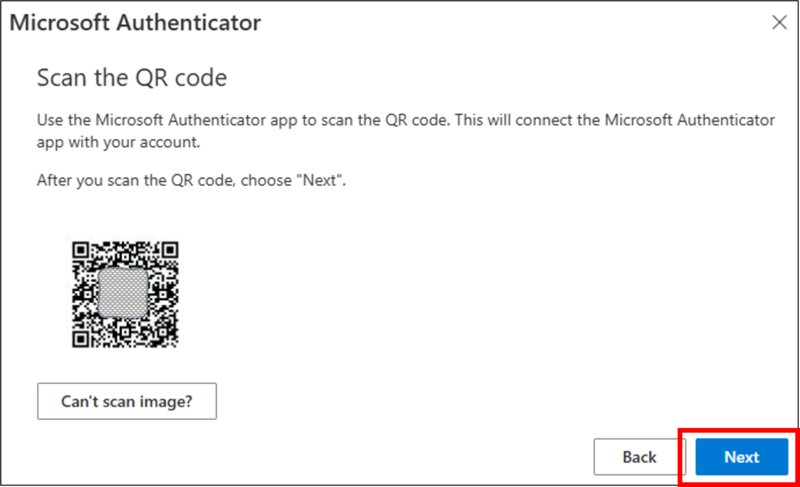
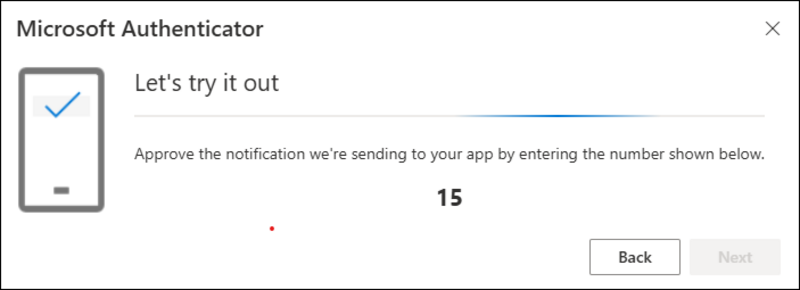
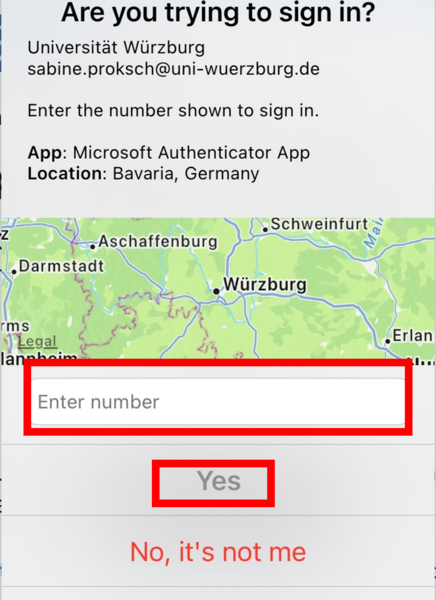
- At the same time, you will receive a push notification on your smartphone
- Attention:
you may be asked to unlock the app with your PIN (or fingerprint, Face ID) .
It is the PIN you always use to unlock your smartphone - it is not the 2-digit number - Display "Would you like to log in?"
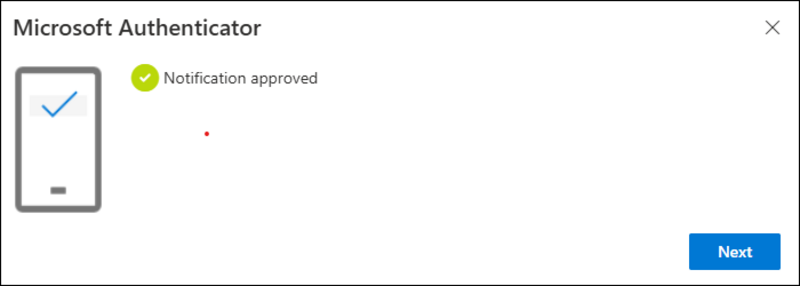
- Now enter the 2-digit number and confirm with [ Yes ]
- If necessary, the app must be unlocked again with smartphone PIN (or fingerprint, Face ID)